Note: You can change configuration settings for this tool in Run mode. However, these settings usually only persist for the current runtime session. When you close the CygNet Studio screen on which the tool resides, the tool settings may revert to those originally configured in Edit mode.
The following procedure describes how to create and configure a group, y-axis, and series (plotted line). These three items work together to make up the most important parts of a Trend Tool graph since they define, organize, and display the data you want to view in a trend format. Use the same procedure to add more groups, y-axes, and series where you need them.
Here are brief descriptions of the three main graphical components of a trend:
For more information, see the following subsections below:
To Configure a Group, Y-Axis, and Series
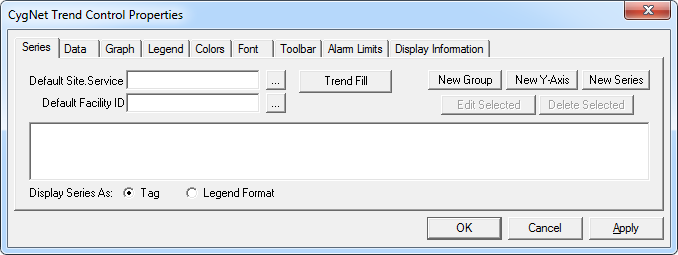
Note: The following procedure assumes that you are using CygNet Studio in Edit mode, have successfully added a Trend Tool to TheView, and are looking at either the Default Trend Properties dialog box or the CygNet Trend Control Properties dialog box.
|
|
| Example Trend Tool Series Dialog Box |
Note: If you want this trend to inherit its Site.Service and facility from TheView, you must go to the Trend Tool's property sheet, click its Normal page, and set the tool's [UseViewSiteService] and [UseViewFacility] properties to 1 - Yes. This causes the Default Site.Service and Default Facility ID properties in the trend properties dialog box to be ignored.
Note: If configuring the trend for a templated screen, you must use the By Facility/UDC option. However, you can override these settings and select a different SITE.SERVICE::FACILITY.UDC combination.
Note: To add a series to an axis without selecting from one of the provided lists, click the Cancel button. When prompted if you still wish to add the series, click Yes, then double-click the empty series to manually enter series information. This is useful if you are not connected to services.
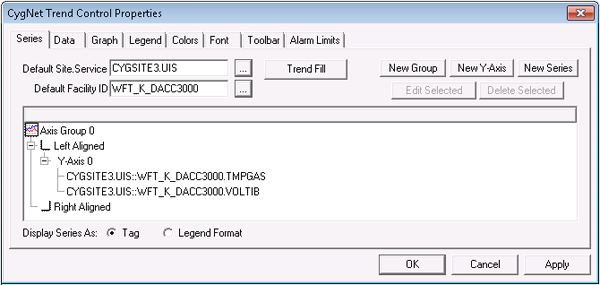
The following image shows a group with one y-axis configured to contain two series (plotted lines):

The following table lists and describes Series page properties.
| Option | Description |
|---|---|
|
Default Site.Service |
Specifies the default current value Site.Service for series. The default Site.Service specified here is used by the Select Point dialog box whenever you add a new series to the trend tree. Used in conjunction with the default facility, it creates a complete long tag string for the specified series UDC. This enables you to add a point to the trend by selecting a UDC alone. The default Site.Service is required if you are configuring a trend for a templated screen. See also DefaultSiteService. |
|
Default Facility |
Specifies the default facility for series. The default facility specified here is used by the Select Point dialog box whenever you add a new series to the trend tree. Used in conjunction with the default Site.Service, it creates a complete long tag string for the specified series UDC. This enables you to add a point to the trend by selecting a UDC alone. The default facility is required if you are configuring a trend for a templated screen. See also DefaultFacilityId. |
|
Trend Fill |
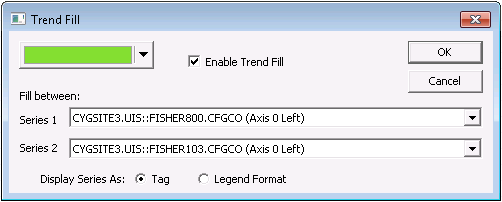
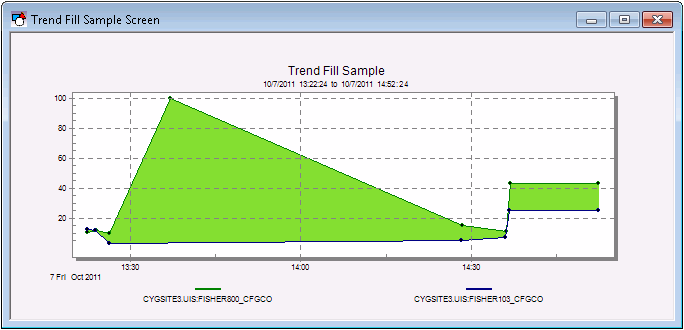
Trend fill enables you to specify a color to be filled in between two series that use the same y-axis. This is a helpful visual aid that highlights the value difference between two points over time. You can use a trend fill option for y-axes that use any Plot Style except Bar or Area. See also FillColor and FillEnabled. |
|
New Group |
Adds a new axis group to the trend. When you add a new group alone, y-axes and series must be added to it manually. |
|
New Y-Axis |
Adds a new y-axis to the trend. You can add a new y-axis to a preexisting group or click in the white space of the trend tree field and add a group - axis combination. Drag and drop the new y-axis to position it where you want. The Trend Tool supports up to 16 y-axes. For more information, see Editing a Y-Axis. |
|
New Series |
Adds a new series to the trend. You can add a new series to a preexisting y-axis or click in the white space of the trend tree field and add a group - axis - series combination. Drag and drop the new series to position it where you want. The Trend Tool supports an unlimited number of series per y-axis. For more information, see Editing a Series. |
|
Edit [Selected] |
Enables you to edit a selected trend component if it is available for editing. You can also right-click a component to access an edit option. |
|
Delete [Selected] |
Enables you to delete a selected trend component if it is available for editing. You can also right-click a component to access a delete option. |
|
Display Series As |
Select an option to determine a series's displayed appearance in the group-axis-series tree in Edit mode. The options are as follows:
|
|
|
|

